Showing posts with label Tips. Show all posts

Friday, 20 March 2009

Web Search Tips for Internet Explorer 8

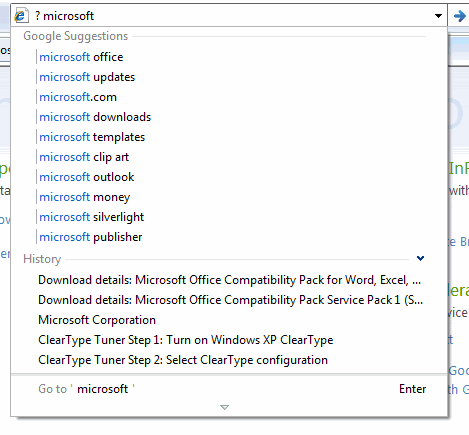
Internet Explorer 8 has many useful features that improve the way you search and browse the web. If you like to search from the address bar, you can now get suggestions from the default search engine if you prefix your query with "? ". IE8 also shows previously visited pages that match the text you typed, but it only searches titles and URLs.


One of my favorite features is that the new version of Internet Explorer knows when you're using a search engine directly, without typing the query in IE's search box. The browser detects the query and displays in the built-in search box so you can easily find results using a different search engine.
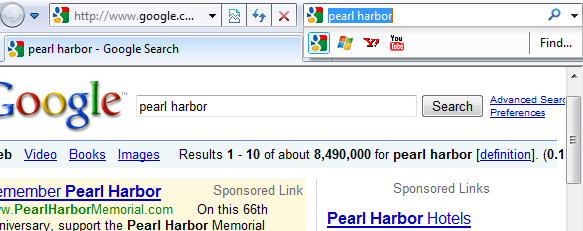

Another interesting integration lets you find the matches of your query in a search result. After clicking on the result, go to the browser's search box and click on "Find" to see the exact matches and navigate to them.

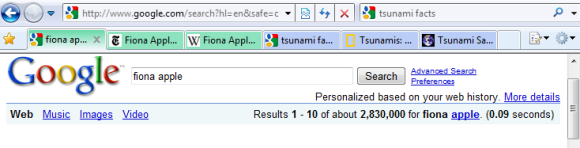
If you open search results in separate tabs, IE uses distinct colors to visually group the related tabs. Right-clicking on a tab you'll find the option to ungroup the tab and to close the entire group.

Some of the search provides that are available in IE's add-on gallery offer enhanced suggestions. For example, Wikipedia lets you navigate directly to one of its pages, Yahoo and Live Search show instant answers for weather, while Amazon includes product images.

All of the search engines are accessible from the contextual menu so you can search for a text you select. They're added to the list of accelerators, which can include any web service that provides useful information about the selected text or the web page you visit: mapping addresses, translating text or bookmarking the page.
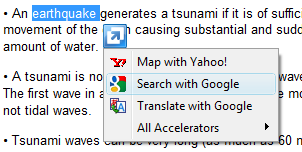

Unlike other browsers, Internet Explorer 8 encourages users to use multiple search engines and makes it easy to switch between them. Sometimes you can even obtain instant answers while you type a query or when you select an accelerator that supports previews.

Saturday, 14 March 2009

How to Sort Tables in Google Docs

The word processor from Google Docs lacks a sorting feature for tables, but Firefox users can try an extension that adds the missing feature. Install TableTools, the best extension for managing tables, restart the browser and open the document that includes tables.

To use the extension, you need to right-click on the table and select one of the available options: sorting, filtering, copying data as tab-delimited text or as HTML. Google Docs replaces Firefox's contextual menu, so it's necessary to press Shift + Right-click in order to bring back the original menu. Select from the menu "Sort table column as" and choose the appropriate data type.


If you want to copy a table from Google Docs to Google Spreadsheets, select the cells, choose from the contextual menu: "Other table operations < Copy as tab-delimited text", and paste the text in a spreadsheet using Ctrl+V. Unfortunately, the filtering feature from TableTools doesn't work in a rich-text editor, but it's very useful if you visit a web page that includes long tables.

Tuesday, 17 February 2009

How to Disable Google Suggest


Google Suggest, the feature that autocompletes your searches with popular suggestions, has been enabled on google.com last year. The feature is enabled by default and, like all the other Google Search preferences, its state is saved in a cookie. That means the settings can be changed only for the browser you're currently using and they're active as long as the Google cookie is not deleted.

The feature can be disabled in the "preferences" page, from the "query suggestions" section.


If your browser automatically deletes cookies when you close it, you'll probably find an option to add exceptions. For example, Firefox's settings page has a button titled "Exceptions" in the Privacy/Cookies section. Type "google.com" and press "Allow" to prevent Firefox from deleting Google's cookie.


Cookies aren't always reliable and sometimes a small change corrupts them. If you use an ad-blocking plug-in like AdBlock Plus for Firefox, add a new filter with the following format:

http://clients*.google.com/complete/search?*

A filter that will disable Google Suggest in Google Video and YouTube has the following format:

http://suggestqueries.google.com/complete/search?*

Here's a more general filter that should work for all international domains:

http://*.google.*/complete/search?*

Changing the preferences for each browser you use is not very convenient. Some people like to use a portable version of their browser on a USB key (Opera, Firefox or even Chrome), others use software that synchronizes their settings (Moziila Weave is an example).

Another solution is to bookmark or add as a homepage a modified version of Google's homepage that doesn't use Google Suggest. Here's the link:

http://www.google.com/webhp?complete=0 - no more Google Suggest

The "complete" parameter controls the status of Google Suggest. If you like the suggest feature and you want to see it in Google's search results pages, not just on the homepage, bookmark this URL:

http://www.google.com/webhp?complete=1 - Google Suggest on all Google pages

Friday, 30 January 2009

Manual Feed Updates in Google Reader

If your Google Reader subscriptions aren't up-to-date or you suspect that a blog has published posts that haven't been indexed by Google Reader, just click on "Refresh". That button usually checks if there are new posts cached by Google Reader, but when you open an individual subscription the button forces an update and loads the new posts. Alternatively, you could just press "r" to update the feed.

In the screenshot below, you can see that Google Reader loaded two new posts from VentureBeat after clicking on the "Refresh" button.


{ via Google Reader's Twitter page }

Wednesday, 28 January 2009

Find Images that Have a Certain Size

Most image search engines offers an option to filter the results by size, but you can only choose between small, medium and large images. Google Image Search has an undocumented parameter that lets you specify the exact dimension of the results:

imagesize:WIDTHxHEIGHT.

Here's an example: [imagesize:640x480 muffin] finds 640px x 480px images related to muffins.


The operator could be useful if you need to find wallpapers for your computer, logos, illustrations for a school project or any other images that have standard sizes.

{ Thanks, Michael Garmahis. }

Saturday, 10 January 2009

Copy Google Documents to Your Account

Someone sent me the link to a document published using Google Docs, but I didn't have the permission to edit the document. I wanted to save the document to my Google Docs account, but none of the options offered by Google allowed me to do that.

One of the ways you could create a duplicate for the document is to replace

http://docs.google.com/View?docid=AAAAA

with

http://docs.google.com/DocAction?action=copy&docid=AAAAA

where AAAAA is the document ID.

To automate the process, I created a small user script that adds an option to duplicate the document. The script works in:

* Firefox, if you install Greasemonkey
* Chrome, if you install the latest pre-beta version
* Opera (no add-on required)
* Safari, if you install GreaseKit
* Internet Explorer, but you need to install a plug-in like IE7Pro

Here's a sample document to try it. After installing the script, open the document, scroll to the bottom of the page and click on "Copy to my account".


Another idea is to upload the document to Google Docs, but you need to edit the URL to remove the footer and add the .html extension. Replace

http://docs.google.com/View?docid=AAAAA

with

http://docs.google.com/View?docid=AAAAA&hgd=1&.html

Related:

Download published documents and spreadsheets
Tips for linking to Google presentations

Saturday, 20 December 2008

Picasa Web Search Tips

Picasa Web Albums has a search feature that can be restricted to your albums, to the public albums of your favorite users or to all the public albums hosted by Google. Here are some ways you can use Picasa Web's simple search engine:

1. Find random photos published by Picasa Web users: just click on the search button from the homepage, while leaving the search box empty.

2. One view for the photos uploaded by your favorite users. If you want to see the photos from the users you've added it to favorites, click on the search button and select "Favorites".

3. Navigate between the results. After selecting a result, you can move to the next result by clicking on the right arrow button or by using keyboard shortcuts: j or right arrow. To go to the previous result, type k or use the left arrow.

4. View the results in a slideshow. Click on the "Slideshow" option to view the results without manually navigating between them.

5. Adjust the size of the thumbnails from 72 pixels to 288 pixels width using the selection bar.


6. Download the results in Firefox. Picasa Web Albums provides a feed output for search results and you could use it to download the photos.

7. Restrict the results to a user. Open the album gallery of that user, enter your query and then select the name of the user from the line "My Photos | Favorites | Community photos | User's Gallery".

8. View the search results in a screen saver. Picasa 3 lets you create a screensaver that shows images from media RSS feeds. The feed generated for search results can be added to the screensaver.

9. Find photos from a certain location. Go to Google Maps, find the desired location, select "My Maps" and check "Photos from Picasa Web Albums" from the featured content section. The mapplet lets you enter a query and it displays the results on the map.


10. Use Google Image Search to search Picasa Web Albums photos. Just add site:ggpht.com to your query, for example: [christmas site:ggpht.com]. Google Image Search doesn't include all the photos hosted by Picasa Web, but it produces more relevant results.

Tuesday, 16 December 2008

How to Remove iGoogle's Chat Box

Update: This trick is no longer necessary since there's an option that lets you hide the chat box. To hide the chat box, click on the "Options" link next to the contacts list and select "Hide chat".

iGoogle added a Google Chat box in the sidebar, but many people find it annoying because they don't use the option and it slows down page loading. Google doesn't provide an option to hide the chat box, but someone found a workaround that disables it.


If you haven't set up mobile iGoogle, use the wizard from this page. Then go to the settings page, scroll down to the Export/Import section, click on the Export button and save an XML file that contains the settings for all the iGoogle tabs. Open the file in a text editor like Notepad, find the last line that contains <Section/> and remove it. After saving the file, go back to iGoogle's settings page and upload the XML file.

Saturday, 29 November 2008

More Ways to Hide Google SearchWiki

In a recent interview with Cedric Dupont, product manager for Google SearchWiki, we found that Google doesn't intend to provide an option to disable SearchWiki. "While users don't have the option of turning off SearchWiki, they do have the option not to use the feature. By turning off the feature entirely, people will never get used to the new offering or see how it might be useful to them. We encourage people to try it out."

Fortunately, there are some ways to hide SearchWiki's visual clutter:

1. Sign out from your Google account. The feature is only available to authenticated users since it's a way to customize search results.

2. Use a Greasemonkey script that hides the icons added by SearchWiki.

3. To disable SearchWiki for the current session, add "&hl=all" to the URL of a search results page. Unfortunately, the change is not permanent. Example: http://www.google.com/search?q=test&hl=all.

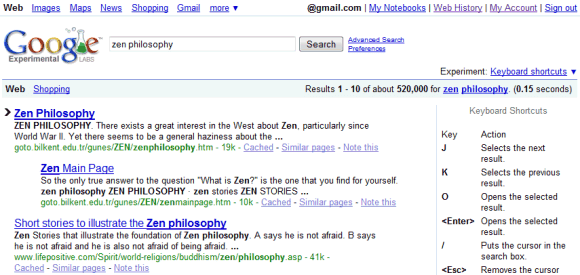
4. If you enable any Google Experimental feature except "SearchWiki with sound", you'll no longer see Google SearchWiki. Probably the most useful experiment you can enable is "Keyboard shortcuts", which adds shortcuts to Google search. Joining an experiment changes your Google cookie, so the experiment is enabled in the current browser and only until you delete Google's cookie.


SearchWiki aficionados can enable "SearchWiki with sound" to hear a sound effect when a search result is removed. "Do you enjoy having the power to remove results from your search results pages? Now you can do so in style by having a sound effect play along with the animation whenever you remove a result. Recorded by our co-founder Sergey Brin himself, this sound effect is sure to please!"

Saturday, 22 November 2008

How to Disable Google SearchWiki

Google SearchWiki lets you customize the search results by promoting, demoting and adding new pages. You can also annotate the results. Some people think that the new feature clutters Google's clean search results, without bringing too much functionality.

Google doesn't offer a way to turn off SearchWiki other than logging out from your Google account, but you can install a Greasemonkey script that hides the interface for this additional functionality. If you use Firefox, install Greasemonkey extension, restart the browser and the add the No SearchWiki script. Google's search results will look clean again, even if you are logged in.


The script also works in Opera, which has built-in support for userscripts. Just go to Tools>Preferences>Advanced>Content>JavaScript Options, choose a folder in the "User JavaScript files" box and then save the script in that folder.

Note that the script doesn't disable the SearchWiki interface for the results you've already promoted so you can restore their default position and you can still see the removed results at the bottom of the page. To undo your changes, you can use My SearchWiki Notes page.

Update: Apparently, Google (temporarily?) removed the feature.

Saturday, 8 November 2008

When Google Scholar's Integration with Google Search is Useful

If you ever find an interesting academic paper in Google's search results:


...and when you click on the result, the page says that you need a subscription:


... go back and click on "All n versions", below the search snippet, to find other versions of the paper from Google Scholar. If you're lucky, you'll find the paper in the HTML, PDF or PostScript format.


Tip: to find a link to the full version of an academic paper in Google Scholar, look for the green arrow.

Tuesday, 28 October 2008

Gmail Modes


If you can't access Gmail, try some of these URLs:

Safe mode - http://mail.google.com/mail/?labs=0. It disables the experimental features from Gmail Labs, just in case some of them are buggy. You can remove some of the features from Gmail's settings page.

Secure mode - https://mail.google.com/. It encrypts the traffic between your computer and Gmail's servers. Use it from public computers, Wi-Fi networks or to bypass some proxies and web accelerators. There's a Gmail setting that redirects the standard version to the secure mode ("Always use https").

Older version - http://mail.google.com/mail/?ui=1. This version has been replaced in October 2007 by a rearchitectured Gmail, but the old version is a little bit faster.

Basic mode - http://mail.google.com/mail/?ui=html. It's the version that doesn't use JavaScript, so it loads faster and it works well with older browsers. Unfortunately, many Gmail features are missing (contacts autocomplete, chat, spell checker, rich formatting) and each click loads a new page. If you like this version, click on "Set basic HTML as default view" at the top of the page.

Mobile mode - http://mail.google.com/mail/?ui=mobile or http://m.gmail.com. This is a simplified Gmail interface for mobile phones that has even less feature than the basic mode. Use it if no other Gmail mode works for you.

iPhone mode - http://mail.google.com/mail/x/gdlakb-/gp/. A more user-friendly mobile version for iPhone and other mobile phones that use WebKit-based browsers.

iGoogle gadget - http://www.google.com/ig/gmailmax. This is the canvas view for the updated Gmail gadget which can be found in the new iGoogle. Some people found that this interface bypasses most corporate filters that prevent them from accessing Gmail at work.

"No browser checking" mode - http://mail.google.com/mail?nocheckbrowser. If you use a cutting-edge new browser and Gmail serves you the basic HTML mode, try this URL to bypass browser detection.

Monday, 8 September 2008

Use Multiple Google Accounts Simultaneously in Google Chrome

Google Chrome's incognito mode is less sophisticated than IE8's InPrivate browsing, but it has a feature that will be useful for those who have more than one Google account.

When you open a window in incognito mode (Ctrl+Shift+N), your cookies from the standard session are no longer available and you can easily log in to a new Google account.


Chrome's help center has more details about this feature. "Webpages that you open and files downloaded while you are incognito won't be logged in your browsing and download histories; all new cookies are deleted after you close the incognito window. You can browse normally and in incognito mode at the same time by using separate windows." Michael Jeffrey explains that "incognito mode is a window-level mode - all pages viewed within this window are not persisted to the user's history, and incognito pages use a temporary cookie store that is blank at the start of the incognito session".

When you close the incognito window, all the cookies are deleted so you need to log in again the next time you browse in incognito mode. This trick can be used for any other services that allow multiple accounts, but you can only use two accounts at the same time: one in a standard window and the other one in incognito mode.

Thursday, 4 September 2008

Google Chrome Tips

Here are some not-so-obvious things you can do in Google Chrome, the minimalistic browser launched on Tuesday.

1. Show the list of recently visited pages from the current tab: right-click on the "Back" button. This also works for the "Forward" button.


2. Undo closing a tab: press Ctrl+Shift+T or open a new tab and check the "Recently closed tabs" section.

3. Focus on the default search option in the address bar: type ? before entering your query.

4. Perform simple calculations and unit conversions using Google Calculator by simply typing the expression in Google Chrome's address bar (or "omnibox"). To copy the answer, select the suggestion.


5. If you need more space in a textarea, resize it by dragging the lower right corner.


6. Monitor the resources used by a web page - right click inside the page, select "Inspect element", switch to the "Resources" tab and reload the web page. You'll see a list of images, scripts and objects loaded from the web page and you can sort them by size or by loading time.


7. Detach a tab and open it in a new window - just drag the tab outside the active window. You can also add it back to the original window using drag and drop.


8. After downloading a file, you can copy it to the desktop or to any other folder by using drag and drop directly from Google Chrome.


9. If the search engine of a site supports OpenSearch, you can add it to Google Chrome's search box by simply visiting the site and performing a search. The domain name automatically becomes a keyword and you should only type the first letters from the URL until you see "press Tab to search example.com". Then press Tab and type your query.


You can also manually add search engines, by right-clicking on the address bar and selecting "Edit search engines". Here's one example, where you can see that you need to find the URL for the search results page and replace the query with %s:

Name - Wikipedia
Keyword - wiki (that's what you need to type in the address bar)
URL - http://en.wikipedia.org/wiki/Special:Search?search=%s

You can also use the keywords for other kinds of services: for translating web pages, for bookmarking pages online or simply as aliases for web pages (omit "%s" from the URL).

Name - Google Translate (English)
Keyword - trans
URL - http://translate.google.com/translate?u=%s

10. Do you want Google Chrome without Google's branding and with an open source license (BSD license)? Check Chromium, the open source project created for Google Chrome. You can install the latest snapshots for Windows or download the code and build it in Windows, Mac, Linux.

To install Chromium in Windows, go to the most recent directory from this page (it should be at the top) and download mini_installer.exe. Note that these snapshots could be less stable than the version available at google.com/chrome and you may need to manually update Chromium.

Sunday, 17 August 2008

Automate File Upload in Google Docs

Google Docs has an option to upload files from web addresses, but it's not very convenient if you want to load many documents or you want to add a link for uploading a document. Here's the direct link that can be used to open a document from the web in Google Docs:

http://docs.google.com/?action=updoc&formsubmitted=true&uploadURL=DOCUMENTURL

This works for documents (.doc/.txt/.html/.rtf/.odt), spreadsheets (.xls/.csv/.ods), presentations (.ppt) and PDF files.

In Windows, you can easily create a batch file that automates the upload of multiple files to Google Docs, assuming that the browser is open and you are already logged in to a Google Account. For example, the following text can be copied in Notepad and saved as a .bat file. After executing the .bat, the two PDF files will upload to Google Docs in separate Firefox tabs.

start /d "%PROGRAMFILES%\Mozilla Firefox" firefox "http://docs.google.com/?action=updoc&formsubmitted=true&uploadURL=http://www.fireworksafety.com/pdfs/FireworkSafetyTest.pdf"

start /d "%PROGRAMFILES%\Mozilla Firefox" firefox "http://docs.google.com/?action=updoc&formsubmitted=true&uploadURL=www.fs.fed.us/fire/safety/wct/2002/brochure_2002.pdf"

A similar option is available in Google Toolbar for Firefox, which lets you open documents from the web in Google Docs.

Wednesday, 23 July 2008

Export the Feeds from a Google Reader Folder

Most feed readers let you import and export subscriptions using the OPML format. For Google Reader, you'll find this option in Settings > Import/Export.

But what happens when you need to export the feeds from a single folder so you can share them with a friend or upload them to a site? Google Reader lets you export the feeds from a folder:

http://www.google.com/reader/public/subscriptions/user/-/label/FOLDER
(you should replace FOLDER with the actual name of the folder)

Another way to share the subscriptions from a folder is to make it public and to use this link for the OPML file:

http://www.google.com/reader/public/subscriptions/user/USERID/label/FOLDER
(USERID can be obtained from the public page created by Google Reader)

This also works if someone shares with you the page of a public folder and you want to obtain the list of subscriptions from that folder. If I share with you my Googlers folder:

http://www.google.com/reader/shared/user/13577231804381328821/label/googlers

you can easily obtain the link to the corresponding OPML file by replacing shared with public/subscriptions:

http://www.google.com/reader/public/subscriptions/user/13577231804381328821/label/googlers

{ Inspired by Abhijeet M. }

Sunday, 20 July 2008

Is a Google Talk Contact Invisible?

Sometimes error messages can reveal more than they were supposed to. Rahul Bansal writes about a simple trick that helps you find out if one of your Google Talk contacts is offline or uses the invisible mode. The trick takes advantage of Google's off the record feature which lets you chat with your contacts without saving the conversations in Gmail.

"Chats that have been taken off the record aren't stored in your Gmail chat history, or in the Gmail chat history of your contact. You and the person you're talking to can both see when a chat is taken off the record, and you'll be notified if off the record mode is disabled. Your off the record settings will apply whenever you chat with this person, until one of you makes a change."

Let's say you want to know if your co-worker Michael is really offline. If you start a chat when he is online and select "go off the record", none of your messages will be saved in Michael's Gmail account. That means the next time Michael appears to be offline and you send a message, there are three possibilities:

1. Michael is offline or he has blocked you: Google will display the error "Michael did not receive your chat" (Gmail Chat) or "Michael may not have received your message" (Google Talk gadget). Offline messages are sent as regular messages in Gmail, but this is not possible because the conversations between you and Michael are off the record. Michael won't receive your message.

2. Michael is invisible: you won't see any error, but Michael will receive your message.

Michael is "invisible"

Michael is now offline

"Now the only tricky part is finding a user online for once to set chat off the records. This doesn't seem hard as invisible status is still limited to Gmail version of Google Talk and you may be in luck if your friend uses Google Talk desktop clients/gadgets or third party IM client to chat," concludes Rahul. It's important to note that the invisible status is available in Gmail Chat, Google Talk gadget, Google Talk Labs Edition and Google Talk for iPhone, not just in Gmail Chat. Of course, your contact can always disable the "off the record" setting or block you.

Monday, 7 July 2008

Import OPML Files to iGoogle

While exporting iGoogle feeds to OPML could be used if you want to move your feeds to another service, importing feeds from an OPML file is a good way to add a large number of feeds to iGoogle.

Here's how you can import the feeds from an OPML file to iGoogle:

1. Obtain an OPML file from your feed reader or personalized homepage:
* Google Reader lets you export your subscriptions in the Settings (direct link to the OPML file)
* Bloglines has a link in the main interface: "Export Subscriptions"
* in Netvibes you have to click on Add content > Add a feed > Export
* My Yahoo has a difficult-to-find OPML file
* Windows Live lets you export your subscriptions in the advanced options
* to export Firefox's live bookmarks, install an extension.

I only tested the script with the OPML files exported by Google Reader, Bloglines, Netvibes, My Yahoo and Windows Live Personalized Homepage, so the conversion might not work for other feed readers.

2. Open the OPML file in a text editor and copy all the content below. (If you are concerned about sharing private data, you should know that this is just a client-side script that doesn't store your data and it doesn't send it to a third-party service.)


3. What you got is the content that needs to be added at the bottom of iGoogle's settings file. Log in to your Google account, go to iGoogle's settings page and scroll to the Export / Import section. Click on "Export" to download iGoogle-settings.xml, a file that contains a list of all your gadgets, feeds and their settings. Don't close the iGoogle settings page because you'll need to import the file later.

4. Backup your iGoogle settings file. Create a copy of the iGoogle-settings.xml file, just in case something goes wrong. You'll be able to import the settings and go back to a working iGoogle.

5. Open iGoogle-settings.xml in a text editor and add the text obtained at the step #2 before the line that contains </GadgetTabML> (the last non-blank line), like you see in the screenshot.


6. Save the file and import it to iGoogle settings, in the Export / Import section.

All folders from the OPML file should be converted to iGoogle tabs, which can be renamed and reordered in the settings. iGoogle doesn't save the state of an item (read/unread) and only lets you see up to 9 recent items from a feed, but it's a great dashboard for your feeds.


Related:
Export iGoogle feeds to OPML

Sunday, 6 July 2008

Export iGoogle Feeds to OPML

I've heard many people complaining that iGoogle doesn't offer an option to export feeds. Some of them wanted to use a feed reader like Google Reader, while others intended to migrate to competing services like Netvibes or Pageflakes.

Thankfully, iGoogle lets you export your settings and gadgets as a XML file, which can be easily processed and transformed into an OPML file.

Here's what you need to do if you want to export the feeds from your iGoogle page in the OPML format:

1. Log in to a Google account.

2. Open this page, right-click and select "View source" (for Internet Explorer), "View page source" (Firefox) or "Source" (Opera). Copy the entire content of the file to the clipboard (Ctrl+A, Ctrl+C). Alternatively, download iGoogle's backup file and open it in a text editor.

3. Paste the code below and then click on "Convert to OPML". (If you are concerned about sharing private data, you should know that this is just a client-side script that doesn't store your data and it doesn't send it to a third-party service.)


4. Save the output in a XML file: igoogle-subscriptions.xml.

To import the file in Google Reader, go to Settings, click on Import/Export and upload the OPML file. In Netvibes, the steps are less obvious: Add content > Add a feed > Import. Most feed readers have an option to import a list of subscriptions.

I tested the script for converting iGoogle's backup file in IE7, Firefox 3, Opera 9.5, using Google Reader and Netvibes as destinations.


Related:
Import OPML files to iGoogle

Tuesday, 17 June 2008

Search Read Items in Google Reader

One of the most useful features that is missing in Google Reader is a way to search the items you've read in the past. This is useful, since Google Reader's search results are sorted by date and it may be difficult to find an article published two years ago.

Depending on your preferred view, Google Reader defines read items differently: in the expanded view posts are marked as read when you scroll past them (this can be disabled in the settings), while in the list view you need to expand the posts. If you disable the setting that marks the posts as read automatically in the expanded view or if you use the list view, the read items will be a subset of all the posts from your subscriptions.

To see the list of posts you've read in the past, you can visit this page. But if you want to subscribe to the list, so you can easily search the read posts, these steps could help:

1. Find your user ID.
Copy this code:
javascript:prompt("User ID", _USER_ID);void(0);

Go to Google Reader, paste the code in the address bar and press Enter. You should see a long number that needs to be used later so copy it in a text editor or in your browser's search box.

2. Subscribe to your read items.
The feed for read items has a long address:
http://www.google.com/reader/atom/user/USERID/state/com.google/read
Replace USERID with the number obtained in the previous step and subscribe to the feed in Google Reader (for example, type a and paste the feed's URL).

The built-in feed doesn't have options for renaming or unsubscribing, but all these options are available in Settings > Subscriptions. The default title of the feed is "(Your name)'s read items".

To search your read items, enter your query in the search box, press Tab, type the first letters from the feed's title (by default, the first letter from your name) and press Enter.


(The first screenshot features Colorful List View, a Greasemonkey script that brings some color in Google Reader if you use the list view.)

Related:
Explore your interactions with Google Reader

Update (a day later): You no longer have to subscribe to the read items feed, because Google Reader added "read items" as a restriction in the drop-down: