Showing posts with label Google Docs. Show all posts

Thursday, 19 March 2009

Alternative Answers for GoogleLookup

One of the most interesting functions available in Google Spreadsheets is GoogleLookup, which uses an automatically-generated database of facts to find answers for questions like "What's the population of Quebec?" or "How many employees does Google have?".

Unfortunately, the answers aren't always accurate and it would be useful to choose a different result or to edit the existing one. A recent Google Spreadsheet update added a way to change the answer: click on the cell you want to edit, select "More options" and choose one of the other two alternative answers. Maybe Google will go one step further and provide an interface for editing the facts or flagging the facts that are inaccurate.


To use GoogleLookup, create a Google Spreadsheet and type in a cell:
=GoogleLookup("name", "attribute")

Some examples:
=GoogleLookup("Quebec", "population")
=GoogleLookup("Google", "employees")

Google Spreadsheets has a special function that returns information related to the Men's and Women's NCAA Division I Basketball Championship in the US and there's also a function for stock market quotes.

Homework: Create a spreadsheet that displays facts about 20 people, companies or geographical locations by using the Google Sets-powered AutoFill feature to generate the list of entities and GoogleLookup to find the facts. You can make the spreadsheet public and share the address in the comments.

Saturday, 14 March 2009

How to Sort Tables in Google Docs

The word processor from Google Docs lacks a sorting feature for tables, but Firefox users can try an extension that adds the missing feature. Install TableTools, the best extension for managing tables, restart the browser and open the document that includes tables.

To use the extension, you need to right-click on the table and select one of the available options: sorting, filtering, copying data as tab-delimited text or as HTML. Google Docs replaces Firefox's contextual menu, so it's necessary to press Shift + Right-click in order to bring back the original menu. Select from the menu "Sort table column as" and choose the appropriate data type.


If you want to copy a table from Google Docs to Google Spreadsheets, select the cells, choose from the contextual menu: "Other table operations < Copy as tab-delimited text", and paste the text in a spreadsheet using Ctrl+V. Unfortunately, the filtering feature from TableTools doesn't work in a rich-text editor, but it's very useful if you visit a web page that includes long tables.

Tuesday, 3 March 2009

Google Spreadsheets to Add Macros, Drawings

Google Spreadsheets, probably the most impressive application from Google Docs, tests some interesting features that are currently experimental and limited to trusted testers.

One of the features lets you record macros for common tasks. Instead of repeatedly selecting the formatting for a cell or a group of cells, you can record the sequence of commands that perform the formatting and click on a button to use the macro.

Another feature, code-named "Sketchy", allows you to insert different drawings. Tony Ruscoe spotted some of the images that will be available in a library that resembles Microsoft Office's Clip Art.

Google Spreadsheets' code also references an option titled "Solver", which could be a tool for solving optimization problems, and an option to protect sheets and cell ranges.


Update: Tony points to a post from 2008 with more details about macros in Google Spreadsheets.

Friday, 13 February 2009

Edit Google Spreadsheets on a Mobile Phone

Until now, the mobile interface for iPhone of Google Docs was only useful to read documents, spreadsheets and presentations. This is about to change now that spreadsheets can be edited: you can add rows, edit an existing row, filter the columns by value and sort the columns.

The new editable list view for spreadsheets is available for iPhone, T-Mobile G1 and Nokia S60 phones, that is for mobile phones that have WebKit-based browsers.

Screenshot from Firefox with an iPhone user-agent.


Tip: If you like the list view, there's an easy way to enable it for any spreadsheet, even if you're using a desktop browser. Just replace

http://spreadsheets.google.com/ccc?key=ID

with

http://spreadsheets.google.com/lv?key=ID .

{ Thanks, Daniel. }

Friday, 6 February 2009

Attach Files to Google Calendar Events

Brandon Kraft spotted a new feature in the Google Apps version of Google Calendar: attaching files from Google Docs and photos from Picasa Web Albums to an event. Sometimes you can provide all the details of an event in the description box and you may need to attach photos, presentations and other useful documents.


What I don't understand is why there's no rich-text editor in Google Calendar, where you could drag and drop content from web pages and even images. Hopefully, when GDrive finally launches, you'll be able to access the files stored in Google's Web Drive from any other Google service.

{ Image licensed as Creative Commons Noncommercial Share-Alike. }

Thursday, 5 February 2009

Print Preview in Google Docs

Google's PDF viewer has many practical uses: you can view the PDF files uploaded to Google Docs, view your Gmail attachments (and not just PDF files). The same viewer is now used to implement "print preview" in Google Docs, a feature available in the File menu.


Use "print preview" before printing a document or just to find the number of pages in your document.

The feature also works for presentations, but it's not yet available from the interface. You will need to manually create the URL:

http://docs.google.com/gview?a=v&pid=writely&srcid=DOCUMENT_ID

where DOCUMENT_ID is the ID of the document or presentation (you can obtain it from the docid parameter).

{ via Google Docs Blog }

Saturday, 10 January 2009

Copy Google Documents to Your Account

Someone sent me the link to a document published using Google Docs, but I didn't have the permission to edit the document. I wanted to save the document to my Google Docs account, but none of the options offered by Google allowed me to do that.

One of the ways you could create a duplicate for the document is to replace

http://docs.google.com/View?docid=AAAAA

with

http://docs.google.com/DocAction?action=copy&docid=AAAAA

where AAAAA is the document ID.

To automate the process, I created a small user script that adds an option to duplicate the document. The script works in:

* Firefox, if you install Greasemonkey
* Chrome, if you install the latest pre-beta version
* Opera (no add-on required)
* Safari, if you install GreaseKit
* Internet Explorer, but you need to install a plug-in like IE7Pro

Here's a sample document to try it. After installing the script, open the document, scroll to the bottom of the page and click on "Copy to my account".


Another idea is to upload the document to Google Docs, but you need to edit the URL to remove the footer and add the .html extension. Replace

http://docs.google.com/View?docid=AAAAA

with

http://docs.google.com/View?docid=AAAAA&hgd=1&.html

Related:

Download published documents and spreadsheets
Tips for linking to Google presentations

Saturday, 3 January 2009

Google Viewer for Gmail Attachments

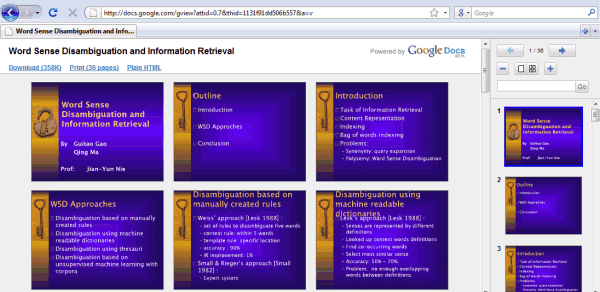
Last month, I mentioned that Gmail links to a new viewer for PDF attachments, powered by Google Docs. It turns out that Google's viewer doesn't work only for PDF files and Google intends to replace the outdated "view as HTML" option with a proper application.

Right now, you can use Google Viewer for PDF, DOC and PPT attachments, but the option is enabled by default only for PDF files. Here's to open Word documents and PowerPoint presentations in Google Viewer:

1. Find an email that includes a DOC or PPT attachment, for example by searching for [has:attachment filename:doc OR filename:ppt].

2. Click on "view as HTML" next to the attachement:


3. Edit the URL by replacing view=att with view=gvatt.


4. Open the page.


You'll be redirected to a page that has the following address:
http://docs.google.com/gview?attid=0.X&thid=THREADID&a=v
(X is the number of the attachment, while THREADID is a value that identifies a Gmail thread).

Google Viewer automatically generates images for each page of your document, you can zoom in/out, there's a basic search feature and you can select text.

Why would you choose this instead of opening the attachment in Google Docs? It loads faster, the document doesn't clutter your Google Docs dashboard and it looks much better. The viewer doesn't inherit any limitation from Google Docs: it includes pagination and it uses the original fonts and layout settings.

Thursday, 18 December 2008

Create Documents from Gmail Threads

What's the quickest way to create a new document in Google Docs directly from Gmail? If you enable "Create a document" in Gmail Labs and you activate keyboard shortcuts, you can press g then w to open a blank document.

The experimental feature adds a new option next to each Gmail conversation that lets you create a new document from it. Gmail merges the content of all the messages from the conversation and it removes the attachments. A similar effect could be obtained by selecting "Forward all" and sending the message to the email address automatically generated by Google Docs.

"No more copying and pasting the text from your email -- just open the message you wish to convert, click the "Create a document" link on the right side of the page, and voila, you have a brand new document which you can then modify and share," explains Gmail's blog.


Another feature from Gmail Labs that could be useful if you frequently use Google's online office suite is the Google Docs gadget. It's a simple way to access recently modified documents, to find documents and to place a link into a message using drag & drop.

Google Docs started as an alternative to collaborating on a document by sending attachments back and forth. "In my business of search marketing, I send lots of tabular data between myself and clients on a regular basis. In the past, we'd have to attach Excel worksheets or post the information in web page tables, adding overhead and inconvenience. We never had the latest document - and merging information was always a pain," says Scott Clark in a Google Docs testimonial. If Google wants to solve the problem of unnecessary attachments, why there's no way to invite people to collaborate on a document directly from Gmail?

{ Thanks, Niranjan. }

Friday, 12 December 2008

Gmail Integrates Google's PDF Viewer

If you receive a message that includes a PDF attachment, Gmail has a new option that lets you view the file without installing a PDF viewer like Adobe Reader. Until now, Gmail converted PDF files to HTML and removed images, so they didn't look very well. The new option uses the PDF viewer from Google Docs, which lets you zoom and search inside the (first 100 pages of the) file.


Google should provide an interface for browsing your Gmail attachments, where you can find files and email them. That interface could be Google Docs, assuming that the plan to extend the filetypes is still on track.

Related:
Gmail attachments

Friday, 17 October 2008

Footnotes in Google Docs

Google Docs added footnotes, a feature that would've been useful for those who write academic papers or books if it were implemented properly. You can insert a footnote by clicking on the Insert menu and selecting Footnote.

"Footnotes appear on-screen in the document margin and at the bottom of the page when printed. You'll be able to see how the footnotes will appear when printed by selecting Print (Ctrl+P) or Download file as... PDF from the File menu. There will also be a footnote marker within the actual document designated by a pound sign (#). You can drag and drop a footnote anywhere you'd like in the document by simply clicking on this pound sign and dragging," notes Google's help page.


Google did a good job at integrating footnotes in the interface, but they should be displayed at the bottom of the page and they should be numbered. Unfortunately, Google Docs still doesn't support pagination.

Another compatibility issue is that word processors will display footnotes as endnotes, at the end of your document.

Monday, 6 October 2008

Google Spreadsheets Redesign

One more step towards a consistent Google Docs interface: Google Spreadsheets has been redesigned and it now includes the same old-fashioned menu like the word processor and the presentation app.

"We were hoping to accomplish three things with it: make it faster, make it more consistent with our siblings (documents and presentations), and give us more room to add features without clutter," explains Google.

The toolbar includes some of the most frequently used features, but I don't think Google did a job at ordering them: for example, the cell formatting options are too prominent, while pasting and sorting have been neglected. It's great that the formulas can be added without switching to a different tab and you can share the spreadsheet without opening a new page. The most stylish UI element is the chat box that can be loaded by clicking on "(name) is viewing...".


If you don't remember the previous interface, here's a screenshot:


A very cool new feature is the full-screen mode: press Ctrl+Shift+F repeatedly to alternate between two full-screen views and the standard view. The same shortcut lets you switch to the full-screen mode in the word processor, but you need to press Esc to return to the normal mode. Where is the consistency?

{ Thanks, Kevin. }

Thursday, 11 September 2008

Table of Contents, Dictionary and Thesaurus in Google Docs

It's no longer necessary to use bookmarklets if you want to add a table of contents in Google Docs because this feature is now available in the interface: Insert > Table of contents. To add a table of contents, your document needs to include headings from the Format menu.

Google Docs actually creates a bookmark for each heading from the document and displays the bookmarks hierarchically using lists. Unsurprisingly, when you open the document in Microsoft Word, the application treats the table of contents created in Google Docs as a list.


You can find more information about a word directly from Google Docs: click on the Tools menu and look up the word in Merriam-Webster's dictionary and thesaurus and in Encyclopædia Britannica.


In the Tools menu, there are two other options that allow you to search the web for the selected text. It would be nice to see the results in a pop-up box and to link to them directly from Google Docs, but this is not yet possible.

{ Thanks, Mike. }

Wednesday, 10 September 2008

Google Presently Redesigned

The three applications included in Google Docs have never been properly integrated and there's always an interesting feature that is only available in Google Spreadsheets or in the word processor.

Google redesigned Presently and added the old-fashioned menu already included in the word processor. The interface have been streamlined and there's more room for editing slides.

A notable new feature that can be found in the Slide menu is zooming in/out, but the keyboard shortcuts aren't very intuitive: Ctrl+Shift+left/right arrow.

Google Presently today

Google Presently at launch (September 2007)

Monday, 25 August 2008

Response Summary for Google Forms

Google Docs experiments with automatically generating response summaries for forms. If you edit a form and click on "View responses", Google shows charts for questions with multiple choices and lists the first answers for free-style questions.


The summaries are pretty basic but they reveal more information than the raw data. Hopefully, until the feature is officially launched, Google will make the summaries interactive and customizable and users will be able to publish them.

To see all the spreadsheets from your Google Docs account that include forms, go to http://docs.google.com/#forms.

Sunday, 17 August 2008

Automate File Upload in Google Docs

Google Docs has an option to upload files from web addresses, but it's not very convenient if you want to load many documents or you want to add a link for uploading a document. Here's the direct link that can be used to open a document from the web in Google Docs:

http://docs.google.com/?action=updoc&formsubmitted=true&uploadURL=DOCUMENTURL

This works for documents (.doc/.txt/.html/.rtf/.odt), spreadsheets (.xls/.csv/.ods), presentations (.ppt) and PDF files.

In Windows, you can easily create a batch file that automates the upload of multiple files to Google Docs, assuming that the browser is open and you are already logged in to a Google Account. For example, the following text can be copied in Notepad and saved as a .bat file. After executing the .bat, the two PDF files will upload to Google Docs in separate Firefox tabs.

start /d "%PROGRAMFILES%\Mozilla Firefox" firefox "http://docs.google.com/?action=updoc&formsubmitted=true&uploadURL=http://www.fireworksafety.com/pdfs/FireworkSafetyTest.pdf"

start /d "%PROGRAMFILES%\Mozilla Firefox" firefox "http://docs.google.com/?action=updoc&formsubmitted=true&uploadURL=www.fs.fed.us/fire/safety/wct/2002/brochure_2002.pdf"

A similar option is available in Google Toolbar for Firefox, which lets you open documents from the web in Google Docs.

Tuesday, 12 August 2008

Photo Albums in Google Docs

Google Docs will expand beyond documents. After adding support for storing PDFs, Google Docs will provide ways to create photo albums. It's not very clear if you'll be able to access the photos stored in Picasa Web Albums or create different photo albums, but GDrive is certainly here and its name is Google Docs.

The first screenshot has been created using information from Google's code, which already includes an icon of the photo section. The other screenshots show an empty list of photo albums and a new image search feature.


I suspect Google Docs will become the place where you can upload, share and manage any kinds of files. It's also likely that all the files that are uploaded to other Google services will be accessible in Google Docs in much the same way as the photos uploaded to Blogger blogs can be found in Picasa Web Albums.

Update: Radu noticed that if you go to docs.google.com/#photos and type the first letters from the titles of your Picasa Web Albums, Google shows the full titles as suggestions. It seems that it only works for public albums.

Easier Way to Create Forms in Google Docs

You can now create forms directly from the New menu of Google Docs homepage.


After selecting the Form option, Google opens a wizard that lets you add questions, email or embed the form.


The form saves all the changes automatically and you can now reorder the questions using drag-and-drop.

What I don't like is that Google doesn't link to the spreadsheet which includes the form, so you have to find the spreadsheet by going back to the documents list. The relation between forms and spreadsheet is confusing and it would be nice to detach the forms from spreadsheets and use the forms as one of the many possible data sources, along with feeds, CSV files published on the web, financial data etc.

Sunday, 10 August 2008

Add a Table of Contents to Google Docs and More

Basic features like table of contents, footnotes or thesaurus are still missing from Google Docs. Some of the features are already implemented and they're ready to be added to the interface.

(Update: If you have Google Gears, temporarily disable it for Google Docs by removing docs.google.com from the list of allowed sites in Google Gears Settings.)

For example, to generate a table of contents from the headings of a document, just paste this code in the address bar:

javascript:mr("TocSettings");

You should see a dialog that lets you choose the numbering style.


There's also an option to insert a HTML snippet without editing the HTML code. The dialog can be invoked by pasting in the address bar:

javascript:dy();

A word processor is more useful if you can easily access a dictionary, an encyclopedia and other sources of information. Select some text from a document and paste the following lines to show information from:

Encyclopædia Britannica
javascript:MC=NC();GC("encyclopedia");

Merriam-Webster's Online Dictionary
javascript:MC=NC();GC("dictionary");

Merriam-Webster's Online Thesaurus
javascript:MC=NC();GC("thesaurus");


Hopefully, these features will soon be added in the interface.

Thursday, 17 July 2008

Google Docs in Full Screen

If you need more space to edit your documents in Google Docs or if you want to read a document, there's now a full-screen mode that hides the menus and the toolbar. Just select View > Full-screen mode or type Ctrl-Shift-F to go into full-screen mode. Unfortunately, the same shortcut is also used by the Web Developer extension to display element information, but you can change it in the options.

Since you no longer have access to the menus, it's useful to know the keyboard shortcuts and to remember that Esc brings you back to the normal mode.


If you publish a document and you want to display it in fixed-with page view, just append &pageview=1 to the URL:
http://docs.google.com/View?docid=d0n7b3_3v1l&pageview=1

To hide the footer automatically added by Google, append &hgd=1 to the URL:
http://docs.google.com/View?docid=d0n7b3_3v1l&hgd=1